Your thumb leaves a joystick, yet a game cursor keeps crawling. The stick may be mechanically centered while its electrical reading sits a little away from the number your program calls zero. Build an input tester that measures the real center, learns both ends of each axis and gives small unwanted movements a quiet zone.
This experiment uses a documented Joy-IT COM-KY023JM, also called KY-023, with an original Raspberry Pi Pico. It prints two normalized position values and a clean push-button count in the computer’s text console. It drives no motor.
One stick contains three different inputs
A joystick is a hand-operated input that reports movement along two directions, called the X and Y axes. This unit uses a potentiometer for each axis: a resistive track with a movable contact, or wiper. Moving the stick changes where that contact sits between the supply and ground. The two wiper voltages appear at the board’s VRx and VRy output labels. Those names identify these axis outputs; they are not a guarantee of the same connector order on another module.
An analog signal can vary across a range of voltages. An analog-to-digital converter, ADC, measures such a voltage and gives the program a number. The Pico already has suitable ADC inputs. Its GPIO means general-purpose input/output; these are configurable connections to the processor. GP26 and GP27 are GPIO numbers that also provide ADC0 and ADC1. They are different from physical header numbers 31 and 32.
The third input is a switch under the stick. SW is the board’s switch label. In this experiment a pull-up resistor, enabled inside the Pico, weakly holds the released input at a high voltage. Pressing the verified switch connects that input to ground, GND, the shared voltage reference, producing a low reading. Active-low means that low represents the active, pressed condition.
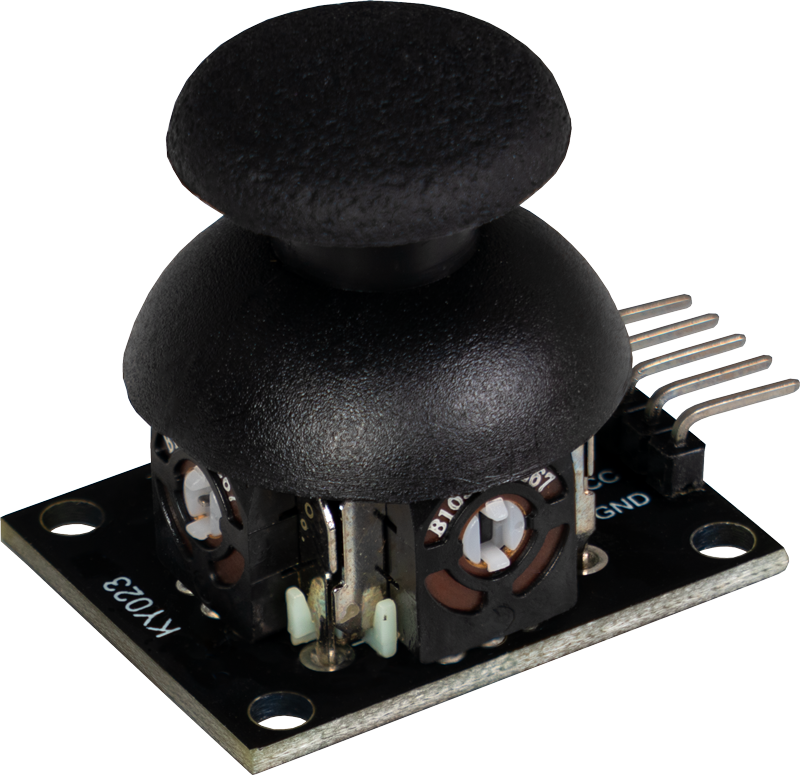
The existing KY-023 overview introduces the module. Here the new task is measurement and calibration on a 3.3 V Pico: a generic midpoint such as 512 or 32768 is deliberately replaced by readings from your own unit. A rotary encoder, which reports discrete movement events, asks a different question from this joystick’s two position voltages.
Choose the documented parts and voltage
| Item | Exact choice or requirement | Role |
|---|---|---|
| Joystick | Joy-IT COM-KY023JM / KY-023, matching the reviewed manual and SensorKit page | Two wiper signals and one switch. A similarly named marketplace board needs its own review. |
| Controller | Original Raspberry Pi Pico with RP2040 processor and correctly fitted headers; a Pico H provides fitted headers | Two analog inputs and one pulled-up digital input. This wiring does not cover Pico 2 or a full-size Raspberry Pi computer. |
| Connections | Five suitable short signal jumper leads, with connector types matching your actual headers | Direct connections are sufficient; a breadboard is optional. No servo or other load is attached. |
| Power and console | A data-capable Universal Serial Bus (USB) cable and computer; MicroPython documentation baseline 1.24.0 for the original Pico | USB powers the Pico and carries the program’s text output. |
| Check tools | A multimeter for unpowered continuity and low-voltage measurement | Confirm the switch and power/signal connections before relying on software. |
The Joy-IT product page specifies 3.3 V operation, and its Pico wiring example uses the board’s low-voltage supply. The 7 May 2024 manual also connects the module’s printed +5V terminal to a 3V3 source in its Raspberry Pi example. Therefore the terminal label does not instruct us to feed it 5 V here. Use the Pico’s 3V3(OUT) regulated 3.3 V output for this exact module.
There is another documentation inconsistency worth catching before wiring: the manual overview describes the switch changing low to high, while its example code and the SensorKit Pico code use a pull-up and a pressed-low switch. With power disconnected, check that pressing your module connects SW to GND and releasing it opens that connection. If it behaves differently, stop and resolve the actual unit’s wiring instead of reversing a software label to hide the difference.
Five connections, with both kinds of pin number
GND, ground, is the common reference used when comparing voltages. Disconnect USB before making connections. With the Pico’s USB connector at the top, compare its headers with the official Pico pinout; do not count pins from an unrelated board photograph.
| Joy-IT terminal | Pico signal | Pico physical pin | Program configuration |
|---|---|---|---|
| GND | GND | 38 | Shared voltage reference |
| +5V printed supply terminal | 3V3(OUT) | 36 | 3.3 V supply only |
| VRx | GP26 / ADC0 | 31 | ADC(Pin(26)) |
| VRy | GP27 / ADC1 | 32 | ADC(Pin(27)) |
| SW | GP28 | 34 | Pin(28, Pin.IN, Pin.PULL_UP) |
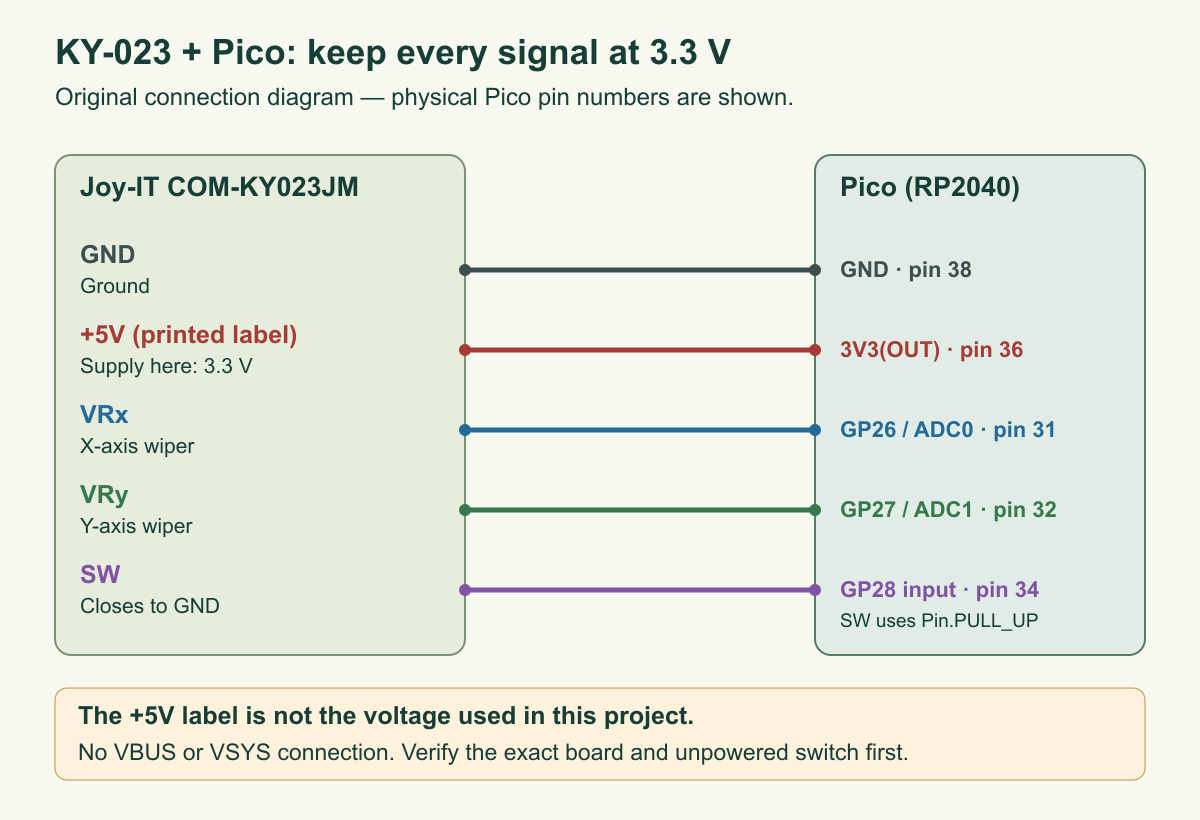
- Check the module identity, five terminal labels and unpowered SW-to-GND operation. Do not identify pins from wire color alone.
- Connect only module supply and ground first. Power the Pico by USB and measure the module supply, then its two wiper voltages through gentle travel. They must remain between ground and the actual 3.3 V rail. Do not connect a signal that exceeds that rail to a Pico input.
- Disconnect USB again, add VRx, VRy and SW to the listed Pico pins, and inspect for adjacent-header shorts. The Pico’s VBUS, the USB supply connection, and VSYS, its system-power input, are not used for the module.
- Keep the joystick on the desk with no motor or external circuit attached. Reconnect USB and open the Python editor’s output console.
The MicroPython reference for its Raspberry Pi microcontroller port, called RP2, describes the usual 0–3.3 V ADC range and explicitly configuring an analog input with ADC(Pin(...)). We use that form, not a bare channel number that might leave previous pin settings in place. The 0–65535 value returned by read_u16() is a scaled result; the RP2040 converter has 12-bit conversion hardware. A bit is a binary digit, with two possible values; more bits can represent more codes. Sixteen output bits do not establish sixteen bits of physical accuracy.
Teach the program your center and travel
Calibration establishes a relationship between readings and the meaning we want to assign to them. Here it is deliberately local to this joystick and session. An endpoint is a reading near one end of its permitted mechanical travel. A dead zone is a region around the released center that the program deliberately reports as zero.
The complete program has two guided phases. Release the stick for the one-second preparation message, then leave it alone during approximately two seconds of center sampling. The program takes 200 pairs of readings. Each reading averages four ADC conversions; this can soften short variation, but it neither measures the supply reference nor repairs poor contacts.
A median is a middle ordered value after sorting readings. We use the lower middle value for an even sample count. The center is rejected if its largest and smallest readings differ by more than 2000 codes. That limit is a chosen teaching guard, not a manufacturer accuracy specification. Releasing the stick matters: holding it slightly off-center teaches the software a false zero.
After a second preparation message, gently sweep both axes for about eight seconds. Reach each end without forcing the mechanism, pause briefly at each end and repeat; do not merely draw a tiny circle around center. The program collects 800 pairs. Its 1st and 99th percentiles are ordered readings near the ends, leaving about one percent of samples beyond each selected boundary. This reduces the influence of isolated extreme codes. It cannot compensate for never reaching an end.
Each selected endpoint must lie at least 8000 codes from the captured center. A flat or badly incomplete sweep is rejected rather than accepted with a tiny denominator. These thresholds and the 8% dead zone are software design choices for this experiment. Record them with your results. Calibration stays in memory and is repeated whenever you run the program; no calibration file is written to flash storage.
Give the two halves their own ruler
Normalization converts a reading into a convenient common scale. Here center becomes 0, the selected low endpoint becomes −1 and the high endpoint becomes +1. Real center need not be halfway between the endpoints, so one scale factor for the entire travel can give unequal behavior on opposite sides.
positive side: u = (raw - center) / (high - center)
negative side: u = (raw - center) / (center - low)
clamp u to [-1, +1]
if abs(u) <= 0.08: output = 0
otherwise: output = sign(u) * (abs(u) - 0.08) / 0.92
Clamping limits a number to an allowed range. A reading beyond a selected endpoint therefore stays at −1 or +1. After the dead zone, the remaining range is stretched to reach those same endpoints continuously. Without this second stretch, the output would jump from zero directly to roughly 0.08 at the edge of the quiet region.
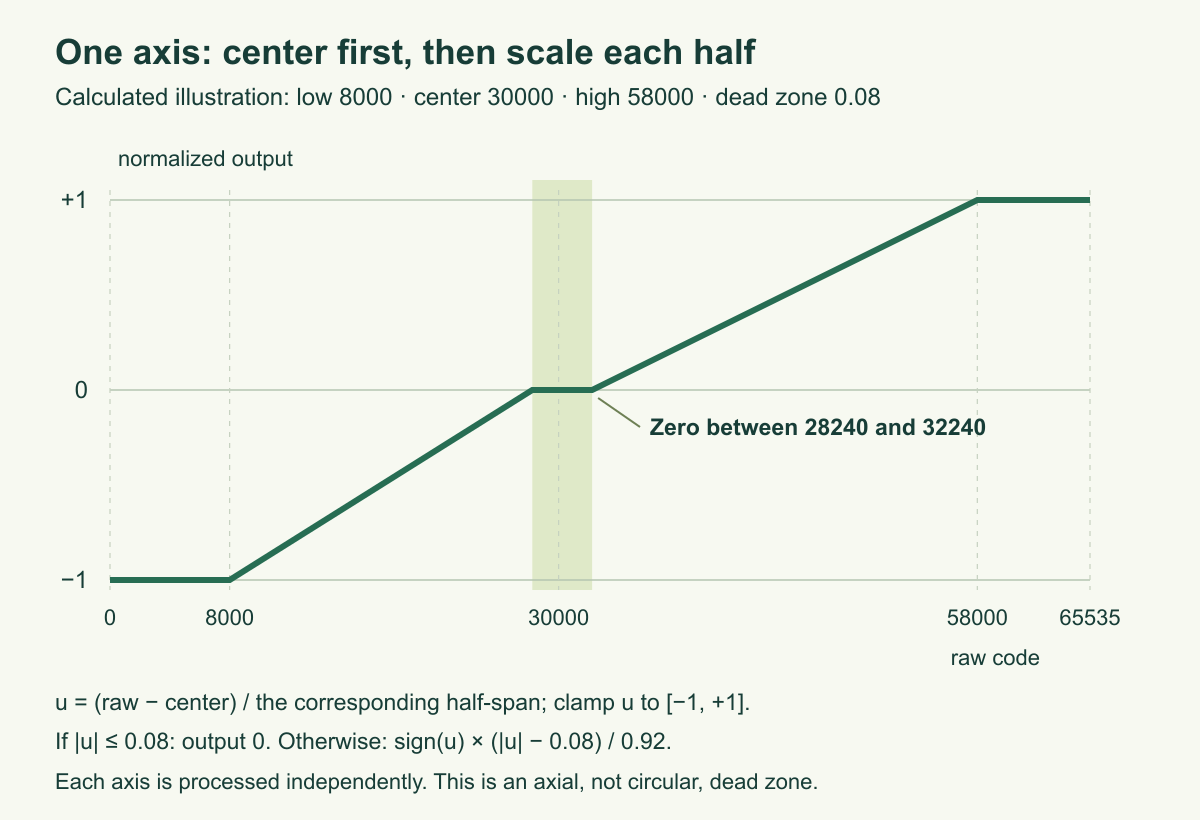
For the illustrated center 30000, low 8000 and high 58000, raw 44000 lies halfway along the positive half: u = 14000 / 28000 = 0.5. After the dead zone it becomes approximately 0.457. Raw 19000 lies halfway along the negative half and becomes about −0.457. A similar distance on either side gets a similar command magnitude despite the unequal electrical spans.
The 0.08 setting means 8% of the corresponding calibrated half-span, rather than 8% of all possible ADC codes. X and Y are processed independently. Their zero region is rectangular in the two-axis plane, rather than a circular radial dead zone based on combined distance. The output pair (1, 1) is allowed; its combined distance from (0, 0) can exceed 1. This matters if you later build a cursor-speed rule. Nothing in these normalized numbers measures degrees, force or physical distance.
Count a press once, not every raw transition
Switch contacts can briefly alternate between open and closed during a press. Debouncing means deciding when those changing readings represent one stable action. Our switch class accepts a candidate only after it has remained unchanged for 30 milliseconds, where a millisecond, ms, is one thousandth of a second. A new count occurs only when an accepted state changes to pressed. Holding the stick down produces no repeated counts.
If the button is already held when the reporting loop starts, that state becomes the initial state and is not counted as a new press. Release it, allow the released state to settle, then press again. The code uses MicroPython’s ticks_diff() for elapsed intervals because its millisecond counter eventually wraps. Directly subtracting two counter values is not reliable across that wrap.
The loop aims to inspect inputs about every 10 ms and print about every 100 ms. Those are requested intervals, not measured guarantees: interpreter work and console output can add delay. Hold a test press for roughly a tenth of a second or longer. This is a manual-input experiment, not a detector for very short pulses.
Run the complete input tester
Use the official original-Pico MicroPython download page and its installation instructions. This article’s software reference baseline is version 1.24.0; that is a reproducible documentation target, not a claim that it is the latest release or that we tested its firmware on a board. Firmware is the software installed on the controller; here MicroPython runs your Python program. Save the supplied file as joystick_calibration.py, open it in an editor configured for the Pico’s MicroPython interpreter, and run it. Stop with the editor’s stop control or Control-C. Running it again starts a fresh calibration.
Download the complete program (joystick_calibration.py inside ZIP) · Blank observation worksheet (joystick-module-calibration-worksheet.csv inside ZIP). The console prints raw readings beside normalized readings so you can distinguish electrical variation from the software’s quiet-zone behavior. CSV, comma-separated values, is the plain-text row format used for the output. Copy a short section into a text file if you want to plot it; the program creates no log file on the Pico.
Complete MicroPython program, including calibration and debounce logic
"""Joy-IT COM-KY023JM on original RP2040 Pico, powered only from 3V3(OUT).

MicroPython RP2 documentation baseline: 1.24.0. No actuator outputs.
Pure calibration/debounce/application functions are also importable on CPython.
Hardware execution has not been performed by the author.
"""

DEAD_ZONE = 0.08
MIN_HALF_SPAN = 8000
MAX_CENTER_SPREAD = 2000
INVERT_X = False
INVERT_Y = False


def checked_raw(value):
    if type(value) is not int or not 0 <= value <= 65535:
        raise ValueError("Expected an integer ADC code from 0 to 65535")
    return value


def percentile(values, percent):
    if not values or not 0 <= percent <= 100:
        raise ValueError("Percentile needs samples and a percent from 0 to 100")
    ordered = sorted(checked_raw(v) for v in values)
    return ordered[((len(ordered) - 1) * percent) // 100]


def center_value(values):
    if len(values) < 20:
        raise ValueError("Collect at least 20 released-center samples")
    for value in values:
        checked_raw(value)
    if max(values) - min(values) > MAX_CENTER_SPREAD:
        raise ValueError("Center moved too much: release the stick and inspect wiring")
    return percentile(values, 50)


class AxisCalibration:
    def __init__(self, low, center, high, dead_zone=DEAD_ZONE):
        self.low = checked_raw(low)
        self.center = checked_raw(center)
        self.high = checked_raw(high)
        if not 0 <= dead_zone < 1:
            raise ValueError("Dead zone must be at least 0 and less than 1")
        if not low < center < high:
            raise ValueError("Center must lie between the travel endpoints")
        if min(center - low, high - center) < MIN_HALF_SPAN:
            raise ValueError("Travel too small on one side: inspect wiring and repeat")
        self.dead_zone = dead_zone

    def normalize(self, raw, invert=False):
        raw = checked_raw(raw)
        span = self.high - self.center if raw >= self.center else self.center - self.low
        unit = (raw - self.center) / span
        unit = max(-1.0, min(1.0, unit))
        magnitude = abs(unit)
        if magnitude <= self.dead_zone:
            return 0.0
        output = (magnitude - self.dead_zone) / (1.0 - self.dead_zone)
        if unit < 0:
            output = -output
        return -output if invert else output


def calibration_from_samples(center_samples, travel_samples, dead_zone=DEAD_ZONE):
    if len(travel_samples) < 100:
        raise ValueError("Collect at least 100 travel samples")
    return AxisCalibration(percentile(travel_samples, 1), center_value(center_samples),
                           percentile(travel_samples, 99), dead_zone)


class DebouncedSwitch:
    def __init__(self, initial_raw, now, interval_ms=30):
        if type(initial_raw) is not int or initial_raw not in (0, 1):
            raise ValueError("Switch input must be 0 or 1")
        if type(interval_ms) is not int or interval_ms <= 0:
            raise ValueError("Debounce interval must be positive milliseconds")
        self.stable = initial_raw
        self.candidate = initial_raw
        self.changed_at = now
        self.interval_ms = interval_ms

    def update(self, raw, now, ticks_diff):
        if type(raw) is not int or raw not in (0, 1):
            raise ValueError("Switch input must be 0 or 1")
        if raw != self.candidate:
            self.candidate = raw
            self.changed_at = now
        if self.candidate != self.stable and ticks_diff(now, self.changed_at) >= self.interval_ms:
            self.stable = self.candidate
            return self.stable == 0  # Exactly one event on each accepted press.
        return False


def capture(read_pair, delay_ms, count):
    x_values, y_values = [], []
    for _ in range(count):
        x, y = read_pair()
        x_values.append(checked_raw(x))
        y_values.append(checked_raw(y))
        delay_ms(10)
    return x_values, y_values


def calibrate(read_pair, delay_ms, log=print):
    log("# Release the stick. Center sampling starts in 1 second; keep it still.")
    delay_ms(1000)
    cx, cy = capture(read_pair, delay_ms, 200)
    center_value(cx)
    center_value(cy)  # Reject unstable center before requesting the travel phase.
    log("# In 1 second, sweep BOTH axes gently to each end for about 8 seconds.")
    delay_ms(1000)
    tx, ty = capture(read_pair, delay_ms, 800)
    x_axis = calibration_from_samples(cx, tx)
    y_axis = calibration_from_samples(cy, ty)
    log("# X low,center,high = %d,%d,%d" % (x_axis.low, x_axis.center, x_axis.high))
    log("# Y low,center,high = %d,%d,%d" % (y_axis.low, y_axis.center, y_axis.high))
    return x_axis, y_axis


def run(read_pair, read_button, ticks_ms, delay_ms, ticks_diff, log=print, iterations=None):
    x_axis, y_axis = calibrate(read_pair, delay_ms, log)
    button = DebouncedSwitch(read_button(), ticks_ms())
    last_report = ticks_ms()
    presses = 0
    loops = 0
    log("ticks_ms,x_raw,y_raw,x_norm,y_norm,pressed,presses")
    while iterations is None or loops < iterations:
        x, y = read_pair()
        now = ticks_ms()
        if button.update(read_button(), now, ticks_diff):
            presses += 1
        nx = x_axis.normalize(x, INVERT_X)
        ny = y_axis.normalize(y, INVERT_Y)
        if ticks_diff(now, last_report) >= 100:
            log("%d,%d,%d,%.3f,%.3f,%d,%d" %
                (now, x, y, nx, ny, int(button.stable == 0), presses))
            last_report = now
        delay_ms(10)
        loops += 1


def average_adc(adc):
    return sum(adc.read_u16() for _ in range(4)) // 4


def main():
    from machine import ADC, Pin
    import time
    x_adc = ADC(Pin(26))  # ADC0, physical pin31, explicit analog pin setup.
    y_adc = ADC(Pin(27))  # ADC1, physical pin32.
    switch = Pin(28, Pin.IN, Pin.PULL_UP)  # Physical pin34; pressed LOW.

    def read_pair():
        return average_adc(x_adc), average_adc(y_adc)

    run(read_pair, switch.value, time.ticks_ms, time.sleep_ms, time.ticks_diff)


if __name__ == '__main__':
    try:
        main()
    except KeyboardInterrupt:
        print("Stopped. The program drives no actuator outputs.")
    except ValueError as error:
        print("Calibration/input rejected:", error)
        print("Stop, inspect the unpowered wiring, then run the program again.")
A useful ten-minute bench session
- Record the setup. Write down the exact module, Pico version, MicroPython version and measured supply. Complete the unpowered and voltage checks before recording software results.
- Calibrate without helping the center. Let the springs return the stick. During the sweep, hold each end briefly and visit both directions of both axes. Record the four endpoint values and two centers printed by the program.
- Observe release. Leave the stick alone for ten seconds. Record the raw variation and whether both normalized outputs remain zero. A stable zero output does not mean the electrical signal stopped varying.
- Check both halves. Move just beyond the quiet region in each direction. The output should leave zero smoothly. Reach each end gently and check for values near −1 or +1. Rotate the module if necessary to discover which physical direction makes each number increase; the manufacturer model name does not define your screen orientation.
- Test the switch separately. Make ten deliberate presses with full releases. Compare your manual count with
presses. Watch whether pressing down also changes an axis: that can be real thumb movement, not a software counting defect. - Repeat rather than trust one sweep. Restart, recalibrate and compare centers and endpoints. Large differences suggest inconsistent handling, wiring or mechanics. Keep the original record instead of replacing it with whichever run looks nicest.
Troubleshoot the observation you actually made
| Observation | Check next | What not to conclude |
|---|---|---|
| An axis never moves or calibration says travel too small | With power off, check its wiper lead and the physical-pin/GPIO distinction. Then repeat a full sweep. | A rejected range is not proof that the joystick itself failed. |
| Readings wander with a disconnected lead | Restore a verified signal and common ground. An unconnected analog input can produce plausible-looking numbers. | A larger dead zone does not repair a floating input. |
| Center rejection occurs repeatedly | Release the stick, shorten loose leads and inspect the supply and contacts before changing the software threshold. | The chosen 2000-code gate is not a calibrated noise specification. |
| One direction reaches its endpoint unusually early | Repeat the travel capture and compare the stored low/high readings. | Endpoint saturation does not prove full mechanical travel was measured. |
| SW stays pressed or never registers | Check unpowered SW continuity, GP28 physical34, the common ground and Pin.PULL_UP. | The conflicting overview sentence does not override the verified electrical behavior. |
| Ten presses give too many or too few counts | Compare deliberate press/release timing with raw behavior; inspect the switch and use a longer stable interval only after checking wiring. | One successful count test is not a contact-lifetime qualification. |
Optional challenge: make the quiet region visible
Copy a short CSV recording and mark every sample for which both normalized values are zero. Then change DEAD_ZONE from 0.08 to 0.12, recalibrate and compare how far you must move before a value appears. Label each run with its settings and captured endpoints. The wider zone should deliberately discard more small movement; it is a trade between quiet release and fine control, not a universal improvement. Keep the same module and wiring while comparing the settings.
Sources and what was checked
- Joy-IT COM-KY023JM product page, manual dated 7 May 2024 and SensorKit KY-023 page: exact board labels, 3.3 V examples, axis functions and the switch-documentation inconsistency. The supplier photo is sourced from that SensorKit page.
- Raspberry Pi original-Pico pinout: physical31/32/34/36/38 and their functions.
- MicroPython 1.24.0 RP2 reference, ADC documentation and time functions: pin initialization, scaled readings, pull-up input and wrap-aware timing.
- Potentiometer background and the existing KY-023 overview are supporting reading; the present calibration experiment uses its own exact wiring and complete program.
Desktop tests exercise the actual calibration, normalization, debouncing and reporting functions with supplied inputs, including rejected calibration and timer wrap. They do not test real ADC noise, switch bounce, connector quality, power limits or a compiled firmware image. Those observations belong in your own bench record.
Download the experiment sources (ZIP): complete programs, full-size PNG and editable SVG diagrams, and blank worksheets where supplied. The complete article program remains inline above.